JPG vs PNG vs WebP: Which Image Format Should You Use?
JPG, PNG and WebP are the three image formats you'll meet most often on the web, and each exists for a reason. Picking the right one affects how sharp an image looks, whether it can have a transparent background, and how quickly it loads. Here's how they compare, and a simple way to choose.
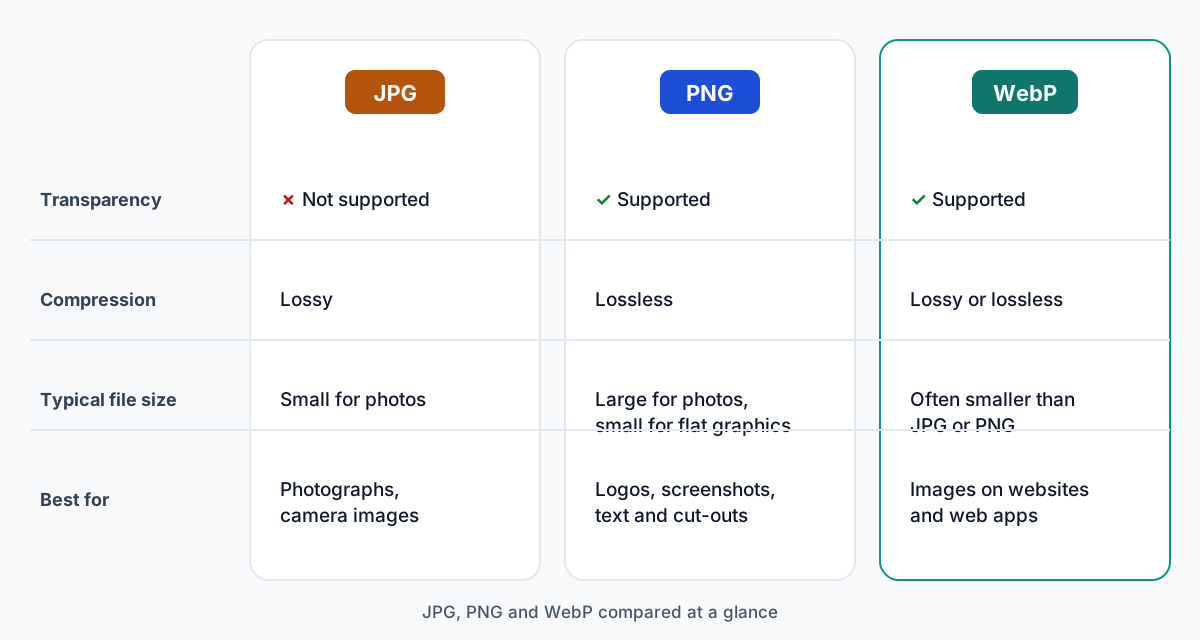
JPG
JPG (also written JPEG) has been the standard photo format for decades. Almost every camera, phone, app and website supports it. It uses lossy compression: it simplifies fine detail and subtle colour changes that are hard to see, which keeps photographs small.
The trade-offs: JPG can't store transparency, and it handles sharp edges badly. Text, lines and flat areas of colour pick up faint blotches around them, known as compression artefacts. Every time a JPG is edited and saved again, a little more detail is lost.
PNG
PNG uses lossless compression. The image you save is exactly the image you get back, pixel for pixel. It also supports full transparency, including soft, partly transparent edges.
That makes PNG the right choice for logos, icons, diagrams, screenshots and cut-outs from a background remover. For photographs, though, storing every pixel exactly produces large files, often many times bigger than a JPG of the same photo.
WebP
WebP is a newer format created by Google for the web. It can work in lossy mode, like JPG, or lossless mode, like PNG, and it supports transparency in both. For many images it produces smaller files than JPG or PNG at similar visual quality, although the savings vary from image to image.
All current major browsers display WebP, so it's a safe choice for images on your own website. Support elsewhere is less universal: some older desktop software, email clients, print services and upload forms still expect JPG or PNG.
Comparing what matters
Image quality
PNG and lossless WebP keep the image exactly as it is. JPG and lossy WebP lose some detail, and how much depends on the quality setting. At high quality settings the loss is usually invisible in photos. Text and hard edges show it first.
Transparency
PNG and WebP can both have transparent backgrounds. JPG can't: any transparent area has to be filled with a solid colour when saving.
File size
For photos, lossy WebP is often the smallest, followed closely by JPG, with PNG far behind. For flat graphics with few colours, PNG and lossless WebP can be very compact. The only way to know for a particular image is to try it, which is why the Image Compressor shows you the exact before-and-after sizes.
Which format for which job?
Photography
Use JPG for sharing, printing and anywhere compatibility matters. Use WebP for photos on your own website. Avoid PNG for photos unless you specifically need lossless quality for further editing.
Logos and graphics
Use PNG, or WebP on the web, especially if the logo needs a transparent background. Keep a high-resolution PNG as the master copy. A vector format such as SVG is even better for logos if your designer supplied one.
Websites
WebP is usually the best default for website images, because smaller files help pages load faster. Use PNG where transparency matters and WebP isn't an option, and resize images to the size they're actually displayed at. Our guide on reducing image file size for websites walks through the full workflow.
Social media
Upload JPG or PNG. Social networks re-compress everything you upload, so there's little benefit in fine-tuning the format. Uploading a good-quality JPG at the platform's recommended image size gives the platform the most to work with. For graphics with text, PNG can survive the platform's re-compression a little better.
E-commerce
Check your platform first, since marketplaces often specify accepted formats and background colours. JPG on a white background is the most widely accepted choice for main product photos. On your own store, WebP versions help category pages with many images load faster. Our product photo editing tips cover the rest.
A quick way to choose
- Does the image need a transparent background? Use PNG, or WebP for the web.
- Is it a photo? Use JPG for compatibility, or WebP for your own website.
- Is it a logo, screenshot or diagram with text? Use PNG, or lossless WebP for the web.
- Does the destination only accept certain formats? Use what it asks for.
Already have a file in the wrong format? The Image Converter switches between JPG, PNG and WebP in your browser, and our step-by-step guide shows how to convert JPG, PNG and WebP images without losing more quality than necessary.